Learn how to configure a Titan truck with a FINCH III for first-time installation. Check out the video below as well as the steps outlined below the video.
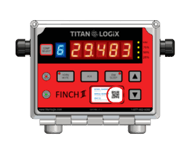
- Using Titan Install, scan the FINCH III display’s QR code.

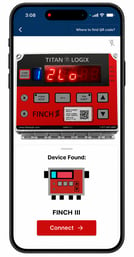
- Tap the Connect button to connect the FINCH III to the Titan Portal.
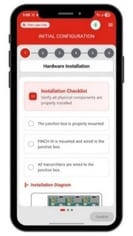
- Go through the initial configuration steps.
- This step must be completed by the installer or administrator when scanning the display for the first time. Each of the configuration screens must be completed. These settings must be known at the time the display is scanned.
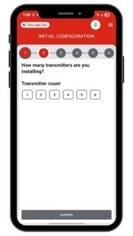
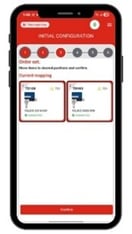
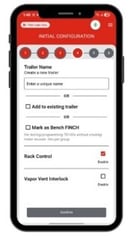
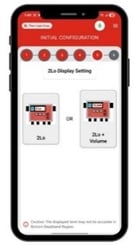
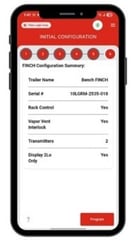
- The final screen shows a summary of the assets installed on the trailer.
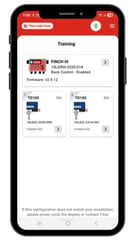
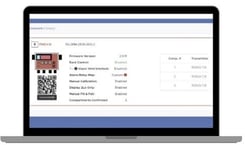
- The newly added trailer and assets are found in the Portal’s Trailers screen.
Need more help?
Contact one of our Titan Logix's Service Team members for more technical assistance.
Phone: 1-877-462-4085 (ext. 2)
Email: service@titanlogix.com
Request Training: Click Here