---
title: Upgrading a 1 Compartment FINCH 5332E & Relay Module to a 1 Compartment FINCH II Display
description: How to upgrade your FINCH5332E to a FINCH II gauge.
---
[Skip to content](https://help.titanlogix.com/finch-5332e-and-relay-module-conversion-to-finch-ii#main-content)
English
Show submenu for translations
[Training Request Form](https://help.titanlogix.com/kb-tickets/new?hsLang=en)
Open main navigation
Close main navigation
- English
Show submenu for translations
- [Training Request Form](https://help.titanlogix.com/kb-tickets/new)
- www.titanlogix.com
www.titanlogix.com
How can we help you?
- There are no suggestions because the search field is empty.
1. [Titan Help Center](https://help.titanlogix.com/?hsLang=en)
2. [Upgrading Titan Products](https://help.titanlogix.com/upgrading-titan-products?hsLang=en)
3. [Upgrade FINCH5332E -\> FINCH II - W or 6W](https://help.titanlogix.com/upgrading-titan-products?hsLang=en#upgrade-finch5332e-finch-ii-w-or-6w)
# Upgrading a 1 Compartment FINCH 5332E & Relay Module to a 1 Compartment FINCH II Display
### **Overview**
This article covers how to upgrade from the FINCH 5332E Display and FINCH Relay Module to the FINCH II Display for a single compartment setup. The FINCH Relay Module is an accessory that enables overfill prevention by control of an onboard pump or loading valve.
**FINCH II Display features:**
- Circuit board incorporates built-in relays, so you no longer need the external Relay Module used with your FINCH 5332E
- Compatible with both TD80 and TD100 transmitters
- Uses the same three wire connections from the transmitters to your Display
- No additional fuses required
While your system might differ slightly, follow the instructions that apply to your setup, and skip any steps for devices not installed on your vehicle.
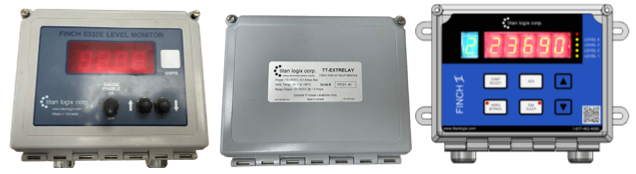From left to right: FINCH 5332E Display, FINCH Relay Module, FINCH II Display
**Required Tools**
- Common mechanical and electrical tools
- Windows 10 or greater computer with Internet access, a programming kit and the SensorLink programming app are required
### **Overview of the Workflow**
Click the individual step below to go to that section.
| **Step 1:** | Remove the FINCH Relay Module and FINCH 5332E Display. **[CLICK HERE](https://help.titanlogix.com/finch-5332e-and-relay-module-conversion-to-finch-ii#Step1)** |
| --- | --- |
| **Step 2:** | Install the FINCH II Display and reconnect the devices that were controlled by the FINCH Relay Module and Finch 5332E Display. [**CLICK HERE**](https://help.titanlogix.com/finch-5332e-and-relay-module-conversion-to-finch-ii#step2) |
| **Step 3:** | Update and Configure the FINCH II Display. [**CLICK HERE**](https://help.titanlogix.com/finch-5332e-and-relay-module-conversion-to-finch-ii#step3) |
| **Step 4:** | Test your system to ensure everything is set up correctly. [**CLICK HERE**](https://help.titanlogix.com/finch-5332e-and-relay-module-conversion-to-finch-ii#step4) |
### **Step 1: Removal Process**
Identify if you have a red circuit board or green circuit board on the inside of the FINCH 5332E Display enclosure.
- For a FINCH 5332E with a RED circuit board, reference this **[guide](https://help.titanlogix.com/uninstalling-and-removing-the-finch-5332e-red?hsLang=en)** for the removal.
- For a FINCH 5332E with a GREEN circuit board, reference this **[guide](https://help.titanlogix.com/uninstalling-and-removing-the-finch-5332e-green?hsLang=en)** for the removal.
### **Step 2: Installing the FINCH II Display**
The following diagrams are included for your reference:
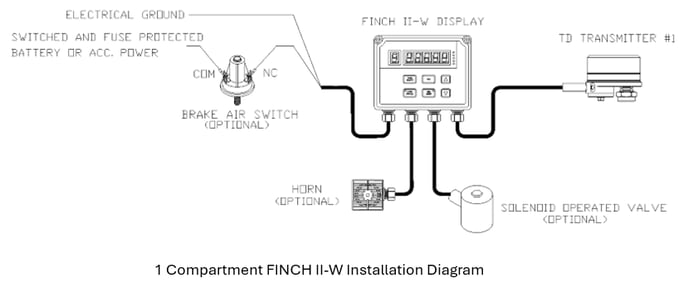
**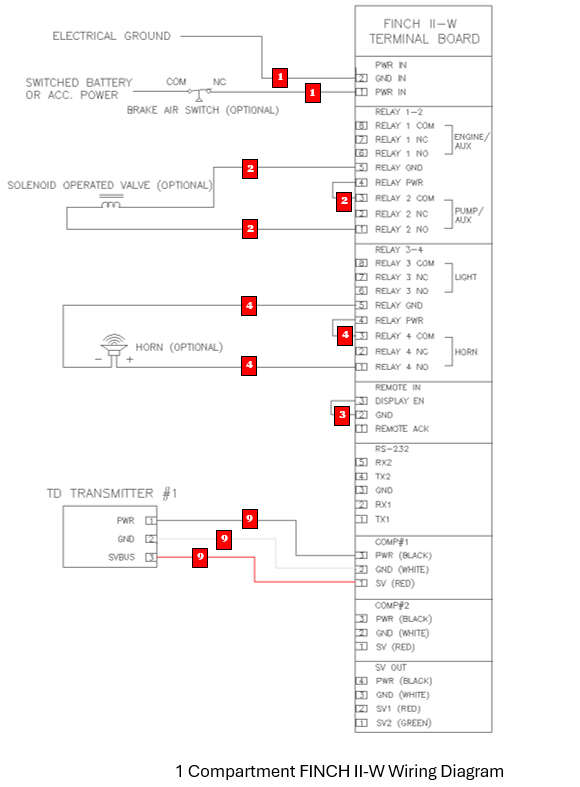**
#### **Installation Steps:**
1. Bolt the FINCH II Display into position.
2. Open the FINCH II display enclosure.
3. Complete the following steps outlined below.
**Tip:** The numbered labels during the uninstallation of the FINCH 5332E and Relay Module match the numbered labels of the installation of the FINCH II/FINCH II-W.
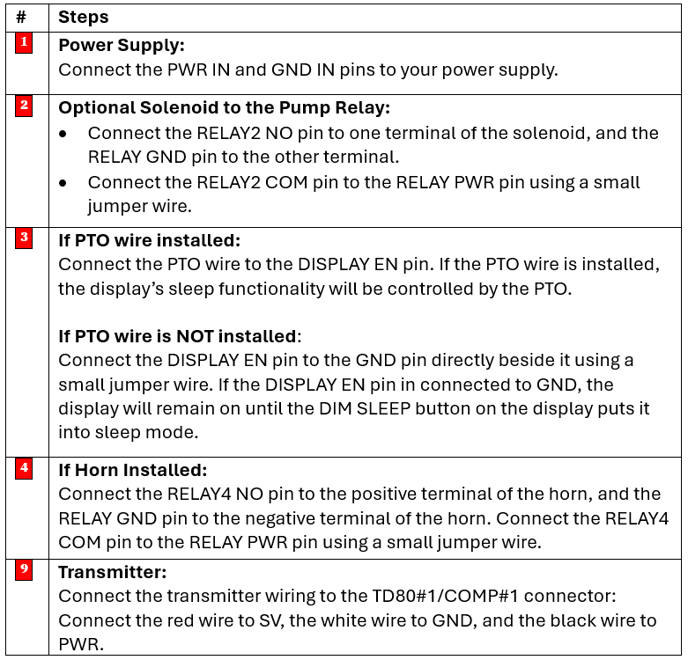
### **Step 3: Configuring the FINCH II Display (optional)**
The FINCH II display may require programming. Alarms are assigned to specific internal relay actions for flexible alarm notifications and high-level shutdowns. Most applications work well with the default factory settings. However, customers can program the display either before or after installation on the vehicle. To program the FINCH II display, you require the Titan Logix SensorLink software.
**Programming Steps:**
1. Ensure the computer is connected to the Internet.
2. Open SensorLink from your computer. If you don’t already have SensorLink installed, click [here](https://www.titanlogix.com/support/downloads/).
3. When SensorLink first opens, it will check for updates. Accept any updates before continuing. The computer may now be disconnected from the internet if required.
4. Update the FINCH II Firmware if required.
5. Configure the display if required. You can configure custom relay alarm settings so that different relays (ENGINE, PUMP, LIGHT, HORN) are triggered by different alarms (SPILL, HH, FILL, FALL). For most applications, the default factory settings work well and do not need to be changed.
6. From the FINCH II circuit board, set the DIP switches for optional features if required. For most applications, the default DIP switch settings are used. Refer to DIP Switch Settings for more information.
### **Step 4: Testing**
After the FINCH II display has been installed and configured, power up the system to begin testing. Ensure that the system works as expected.
**Note:** A TD100 transmitter goes through a self-calibration process during your first load. This may cause slightly inaccurate readings at first but will self correct as the load is complete. This only takes place the first time you load a compartment, or you change the liquid within the compartment using a TD100 transmitter.
---
**Need more help?**
Contact one of our Titan Logix's Service Team members for more technical assistance.
**Phone:** 1-877-462-4085 (ext. 2)
**Email:** [service@titanlogix.com](mailto:service@titanlogix.com)
**Request Training:** [Click Here](https://help.titanlogix.com/kb-tickets/new?hsLang=en)
- [Troubleshooting](https://help.titanlogix.com/troubleshooting?hsLang=en#main-content)
- [Error Codes](https://help.titanlogix.com/troubleshooting?hsLang=en#error-codes)
- [Overview](https://help.titanlogix.com/troubleshooting?hsLang=en#overview)
- [Most Common Issues](https://help.titanlogix.com/troubleshooting?hsLang=en#most-common-issues)
- [Alarms](https://help.titanlogix.com/troubleshooting?hsLang=en#alarms)
- [GAUGE Issues](https://help.titanlogix.com/troubleshooting?hsLang=en#gauge-issues)
- [Relays](https://help.titanlogix.com/troubleshooting?hsLang=en#relays)
- [FINCH III Systems (Current)](https://help.titanlogix.com/finch-iii-systems-current?hsLang=en#main-content)
- [FINCH III System Overview](https://help.titanlogix.com/finch-iii-systems-current?hsLang=en#finch-iii-system-overview)
- [Step 1: Installing Hardware (FINCH III Systems)](https://help.titanlogix.com/finch-iii-systems-current?hsLang=en#step-1-installing-hardware-finch-iii-systems)
- [Step 2: Configuring FINCH III Systems](https://help.titanlogix.com/finch-iii-systems-current?hsLang=en#step-2-configuring-finch-iii-systems)
- [Step 3: Testing FINCH III Systems](https://help.titanlogix.com/finch-iii-systems-current?hsLang=en#step-3-testing-finch-iii-systems)
- [Step 4: Operating FINCH III Systems](https://help.titanlogix.com/finch-iii-systems-current?hsLang=en#step-4-operating-finch-iii-systems)
- [Feature Add-On: FINCH III LCR.iQ Integration](https://help.titanlogix.com/finch-iii-systems-current?hsLang=en#feature-add-on-finch-iii-lcr-iq-integration)
- [Feature Add-On: FINCH III Terminal Overfill](https://help.titanlogix.com/finch-iii-systems-current?hsLang=en#feature-add-on-finch-iii-terminal-overfill)
- [Rack Control](https://help.titanlogix.com/finch-iii-systems-current?hsLang=en#rack-control)
- [Feature Add-On: Onboard Pump Control](https://help.titanlogix.com/finch-iii-systems-current?hsLang=en#feature-add-on-onboard-pump-control)
- [FINCH II-W/FINCH II-6W (End of Life)](https://help.titanlogix.com/finch-ii-w-finch-ii-6w-end-of-life?hsLang=en#main-content)
- [Step 1: Installing Hardware (FINCH II-W/6W Systems)](https://help.titanlogix.com/finch-ii-w-finch-ii-6w-end-of-life?hsLang=en#step-1-installing-hardware-finch-ii-w-6w-systems)
- [FINCH II-W/6W Wiring Diagrams](https://help.titanlogix.com/finch-ii-w-finch-ii-6w-end-of-life?hsLang=en#finch-ii-w-6w-wiring-diagrams)
- [Step 2: Configuring FINCH II-W/6W Systems](https://help.titanlogix.com/finch-ii-w-finch-ii-6w-end-of-life?hsLang=en#step-2-configuring-finch-ii-w-6w-systems)
- [3rd party integrations](https://help.titanlogix.com/finch-ii-w-finch-ii-6w-end-of-life?hsLang=en#3rd-party-integrations)
- [FINCH II, FINCH 5332E and FINCH IN-CAB Systems (Discontinued)](https://help.titanlogix.com/finch-ii-finch-5332e-and-finch-in-cab-systems-discontinued?hsLang=en#main-content)
- [FINCH II Display (1 to 2 Compartments)](https://help.titanlogix.com/finch-ii-finch-5332e-and-finch-in-cab-systems-discontinued?hsLang=en#finch-ii-display-1-to-2-compartments)
- [FINCH II Configuration](https://help.titanlogix.com/finch-ii-finch-5332e-and-finch-in-cab-systems-discontinued?hsLang=en#finch-ii-configuration)
- [FINCH 5332E](https://help.titanlogix.com/finch-ii-finch-5332e-and-finch-in-cab-systems-discontinued?hsLang=en#finch-5332e)
- [FINCH 5332E (Red Board)](https://help.titanlogix.com/finch-ii-finch-5332e-and-finch-in-cab-systems-discontinued?hsLang=en#finch-5332e-red-board)
- [FINCH 5332E (Green Board)](https://help.titanlogix.com/finch-ii-finch-5332e-and-finch-in-cab-systems-discontinued?hsLang=en#finch-5332e-green-board)
- [FINCH IN-CAB](https://help.titanlogix.com/finch-ii-finch-5332e-and-finch-in-cab-systems-discontinued?hsLang=en#finch-in-cab)
- [Rack Control Module (RCM) and Titan Supplied API Sockets](https://help.titanlogix.com/finch-ii-finch-5332e-and-finch-in-cab-systems-discontinued?hsLang=en#rack-control-module-rcm-and-titan-supplied-api-sockets)
- [Titan Supplied API Socket Wiring to RCM](https://help.titanlogix.com/finch-ii-finch-5332e-and-finch-in-cab-systems-discontinued?hsLang=en#titan-supplied-api-socket-wiring-to-rcm)
- [Transmitters](https://help.titanlogix.com/transmitters?hsLang=en#main-content)
- [TD100 Transmitter](https://help.titanlogix.com/transmitters?hsLang=en#td100-transmitter)
- [TD100 Transmitter: 4-20mA Output](https://help.titanlogix.com/transmitters?hsLang=en#td100-transmitter-4-20ma-output)
- [Upgrading TD80 \> TD100](https://help.titanlogix.com/transmitters?hsLang=en#upgrading-td80-td100)
- [TD80 (Discontinued)](https://help.titanlogix.com/transmitters?hsLang=en#td80-discontinued)
- [Titan Probes](https://help.titanlogix.com/titan-probes?hsLang=en#main-content)
- [Overview](https://help.titanlogix.com/titan-probes?hsLang=en#overview)
- [Probe: Dual Rod](https://help.titanlogix.com/titan-probes?hsLang=en#probe-dual-rod)
- [Probe: Coaxial](https://help.titanlogix.com/titan-probes?hsLang=en#probe-coaxial)
- [Titan Install & Titan Portal](https://help.titanlogix.com/titan-install-titan-portal?hsLang=en#main-content)
- [Step 1: Register your Company](https://help.titanlogix.com/titan-install-titan-portal?hsLang=en#step-1-register-your-company)
- [User Guide](https://help.titanlogix.com/titan-install-titan-portal?hsLang=en#user-guide)
- [Getting Started](https://help.titanlogix.com/titan-install-titan-portal?hsLang=en#getting-started)
- [Programming your Strapping Chart](https://help.titanlogix.com/titan-install-titan-portal?hsLang=en#programming-your-strapping-chart)
- [Maintenance and Troubleshooting](https://help.titanlogix.com/titan-install-titan-portal?hsLang=en#maintenance-and-troubleshooting)
- [FINCH Display Configuration](https://help.titanlogix.com/titan-install-titan-portal?hsLang=en#finch-display-configuration)
- [Release Notes](https://help.titanlogix.com/titan-install-titan-portal?hsLang=en#release-notes)
- [Administration](https://help.titanlogix.com/titan-install-titan-portal?hsLang=en#administration)
- [SensorLink](https://help.titanlogix.com/sensorlink?hsLang=en#main-content)
- [Overview](https://help.titanlogix.com/sensorlink?hsLang=en#overview)
- [Programming Your Transmitter](https://help.titanlogix.com/sensorlink?hsLang=en#programming-your-transmitter)
- [Configuring your FINCH Display](https://help.titanlogix.com/sensorlink?hsLang=en#configuring-your-finch-display)
- [Troubleshooting](https://help.titanlogix.com/sensorlink?hsLang=en#troubleshooting)
- [Upgrading Titan Products](https://help.titanlogix.com/upgrading-titan-products?hsLang=en#main-content)
- [Upgrade FINCH5332E -\> FINCH II - W or 6W](https://help.titanlogix.com/upgrading-titan-products?hsLang=en#upgrade-finch5332e-finch-ii-w-or-6w)
- [Adding Overfill Prevention to Your Tank](https://help.titanlogix.com/upgrading-titan-products?hsLang=en#adding-overfill-prevention-to-your-tank)
- [Legacy Products](https://help.titanlogix.com/legacy-products?hsLang=en#main-content)
- [Gateway](https://help.titanlogix.com/legacy-products?hsLang=en#gateway)
- [SFT 881](https://help.titanlogix.com/legacy-products?hsLang=en#sft-881)
- [Flo Pro 9100](https://help.titanlogix.com/legacy-products?hsLang=en#flo-pro-9100)
- [TPZ Liquid Level Measurement System](https://help.titanlogix.com/legacy-products?hsLang=en#tpz-liquid-level-measurement-system)
- [FGI Products](https://help.titanlogix.com/legacy-products?hsLang=en#fgi-products)
- [MIC 10](https://help.titanlogix.com/legacy-products?hsLang=en#mic-10)
- [Service Bulletins](https://help.titanlogix.com/service-bulletins?hsLang=en)
[](https://www.titanlogix.com/support/)
The Leader in Mobile Liquid Measurement Solutions
Copyright © 2026, Titan Logix Corp.